Creating a Shift Profile
Shift profiles are an integral part of creating Schedules and Rosters. A Shift Profile is a collection of shifts you allow people to work. When generating the schedule or roster, Monet is looking at the forecast first; then matching the shift profiles up with the requirements to get to the most optimal staffing. Shift profiles can be the agent's existing shifts, or potential shifts you wish to allow. A shift profile can be shared across the entire contact center, or given to an individual employee. Individual shift profiles would allow the administrator to set an employee with the exact amount of flexibility they desire, without having the over-flexibility of the group shift profile.
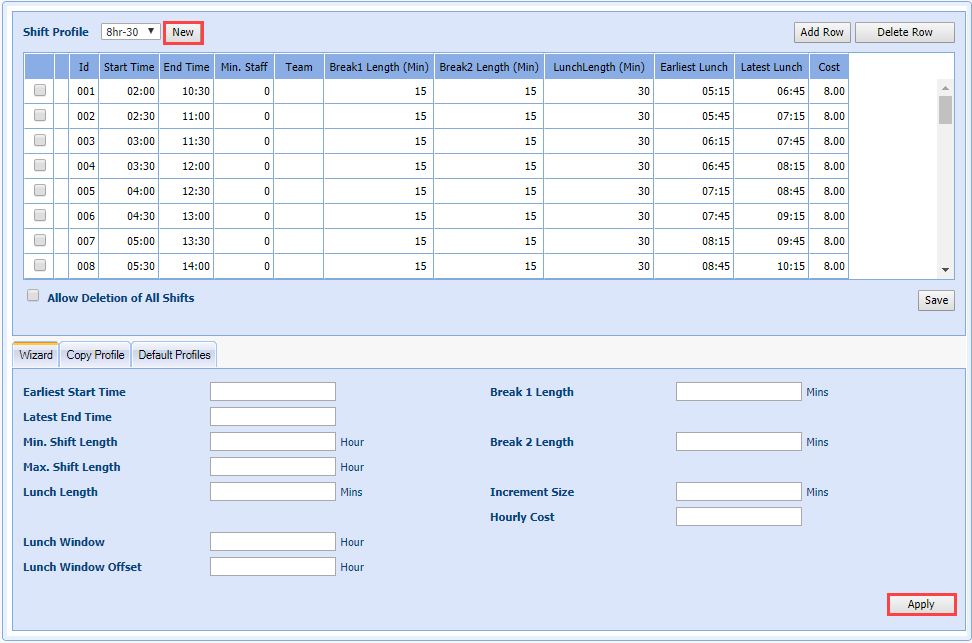
The Shift Wizard creates multiple shifts within a specific start and end time based on the minimum and maximum hours per shift, and the increment size. This will eliminate having to setup each shift one by one. The Shift Wizard will also set the Lunch times when the shift is created. You can modify this information after the shifts have been created.
What do you want to do?
Tasks in this Topic Include:
- Shift Profile Fields
- Create Shift Profiles (Wizard Tab)
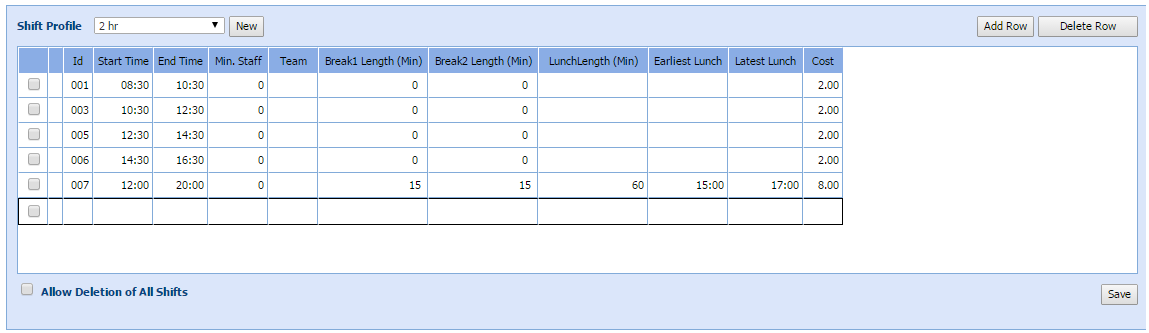
- Adding Individual Shift Profiles
- Edit or Delete Shift Profiles
- Copy Profile
- Default Profiles
Related Tasks:
- Exception Calendar and Meeting Planner
- Shift Profiles
- Change Rosters - Inbound Calls
- Generate Charts
- Generate Rosters
- Generate Reports
See Also:
Shift Profile Fields
These are the available fields used to configure Shift Profiles.
| Shift Profile Fields | Description |
|---|---|
| Earliest Start Time | Enter the earliest start time in which the shift can begin. |
| Latest End Time | Enter the latest start time in which the shift can end. |
| Min. Shift Length | Enter the minimum number of hours in the shift with the lunch time included. For example, a 9 a.m. to 5:30 p.m. shift with a 30-minute lunch would be considered to be 8.5 hours. |
| Max. Shift Length | Enter the maximum number of hours in the shift with the lunch time included. For example, a 9 a.m. to 5:30 p.m. shift with a 30-minute lunch would be considered to be 8.5 hours. |
| Lunch Length | Enter the length of the lunch for this shift. Example 30 minutes, 60 minutes, etc. |
| Lunch Window | Enter the number in hours for the time frame in which the lunch is allowed to be placed. The lunch window is used if employees need to have a later or earlier lunch verse taking the lunch in the middle of their shift. |
| Lunch Window Offset | Enter the number of hours to offset the lunch. The lunch is generally placed in the center of the shift (therefore a 0 offset). -1 is one hour towards the start of the shift and +1 is one hour towards the end of the shift. You can enter .75 hours or 2 hours or -3 hours as well. |
| Break 1 Length | Enter the number of minutes for first break, which is scheduled before lunch. You may enter a zero if the shift only has one break and you would like it to occur later in the shift or if the agent does not receive a break at all. |
| Break 2 Length | Enter the number of minutes for second break, which is scheduled after lunch. You may enter a zero if the shift only has one break and you would like it to occur earlier in the shift or if the agent does not receive a break at all. |
| Increment Size | Increment size can be the start of the next shift. If there is an 8 hour shift and agents start every 30 minutes, enter 30. If they start on the hour, enter 60 minutes. Smallest increment is 15 minutes. |
| Hourly Cost | Enter the Hourly Cost for the shift. You may enter a 0 in this field. |
Create Shift Profiles (Wizard Tab)
- Select Setup from the left-navigation menu.
- Select Shift Profiles.
- Select New.
- Enter a new Shift Profile Name.
- Enter the earliest shift start time in the Earliest Start Time field.
- Enter the latest shift end time in the Latest End Time field.
- Enter the minimum amount of hours in the shift in the Min. Shift Length field.
- Enter the maximum amount of hours in the shift in the Max Shift Length field.
- Enter the amount of allowable lunch hours in the Lunch Window field.
- Enter a numerical value that denotes the offset for lunch time window in the Lunch Window Offset field.
- Enter the number of minutes for the first break in the Break 1 Length field.
- Enter the number of minutes for the second break in the Break 2 Length field.
- Enter the number of minutes for the lunch break in the Lunch Length field.
- Enter the start minutes of the next shift in the Increment Size field.
- Enter the hourly cost for the shift in the Hourly Cost field.
- Select Apply.
Adding Individual Shift Profiles
- Select Add Row.
- Enter a Start Time.
- Enter an End Time.
- Enter a Break 1 Length (if applicable).
- Enter a Break 2 Length (if applicable).
- Enter Lunch Length (if applicable).
- Enter the Earliest Lunch (if applicable).
- Enter the Latest Lunch (If applicable).
- Enter the Cost for the profile.
- Select Save.
Edit or Delete Shift Profiles
- Select the Shift Profile to adjust.
- Double-click the field that needs to be updated.
- Enter the new values as required.
- Select Save.
Copy Profile
Shift Profile sets can be copied within and between workgroups.
- Open the workgroup that will receive the copied profiles.
- Go to Setup > Shift Profiles.
- Click the Copy ProfileTab.
- Select the Shift Profile to be Copied.

- Select the Shift Profile to receive copy.
- Or, click New to create a new set of profiles in the correct workgroup.
- Click Copy Shift Profile.
Default Profiles
A default profile can be set for each day of the week.
- Select the Default Profiles tab.
- Click in the Shift Profiles field for the desired day of the week.
- A drop-down icon will appear in the field.
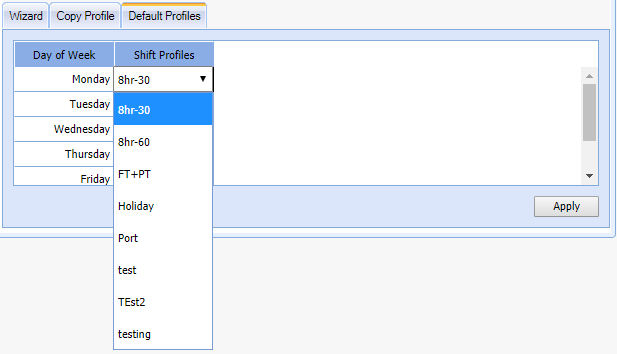
- Click the icon, and a selection of profiles will display.
- Select the desired profile.
- Select default profiles for the other days of the week.
- Click Apply.